Setting Up Two-Factor Authentication with Google Authenticator

Modified on Tue, 19 May at 10:55 AM


Two-Factor Authentication (2FA) adds an additional layer of security to your Oasis account by requiring both your password and a temporary verification code generated from your mobile device during login. This helps protect your account from unauthorized access, even if your password becomes compromised.


To begin using Two-Factor Authentication, the feature must first be enabled on your user account by the Oasis Support team. If you would like to have this added to your account, please contact support at ( support@myoasisapp.com ).


Download and install the Google Authenticator app on your mobile device.


Google Play Store

Apple App Store


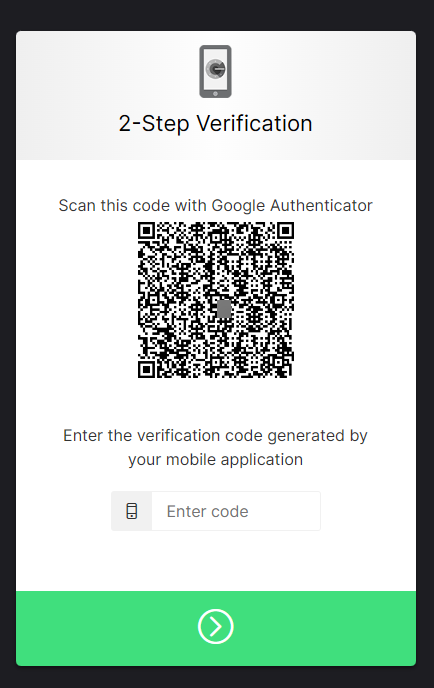
Once enabled, log into Oasis as normal. During your first login after activation, you will be presented with a QR code on the screen.  


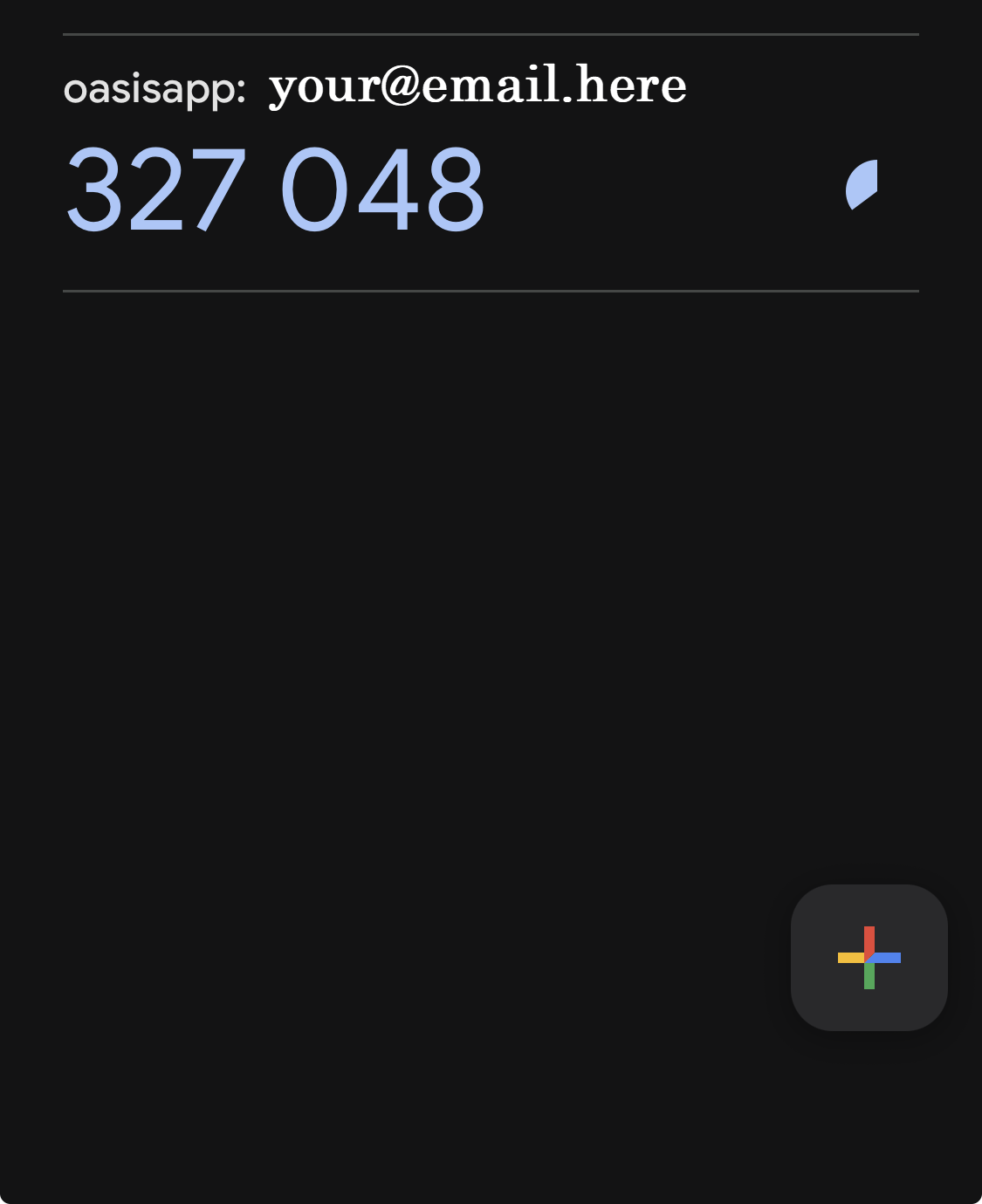
Open the Google Authenticator app and use the option to add a new account by scanning a QR code. Once scanned, the app will begin generating a 6-digit verification code that refreshes automatically every 60 seconds.


Enter the current verification code into the field displayed below the QR code in Oasis to complete the setup process. After verification, Two-Factor Authentication will be successfully linked to your account and will be required during future logins.


Frequently Asked Questions


Why is my verification code not working?


The most common cause is that your phone's date and time settings are not configured to update automatically. Even if the displayed time appears correct, being off by less than a minute can prevent the generated codes from matching correctly. To resolve this, enable automatic date and time settings on your mobile device, then reopen the Google Authenticator app and try again.


Why can't I scan the QR code?


Make sure the Google Authenticator app has permission to access your phone's camera. If the QR code still will not scan, try increasing your screen brightness, moving your phone slightly farther away from the screen, or reducing glare on your monitor. Dark mode can also interfere with QR code scanning on some devices, so switching your device or browser to light mode may help improve scanning reliability. If you continue experiencing issues, please contact Oasis Support for assistance.


What happens if I get a new phone?


If you replace or reset your phone, you may need assistance reconnecting Two-Factor Authentication to your account. Please contact Oasis Support for help restoring access.


What if I lose access to my phone?


If you no longer have access to the device connected to Google Authenticator, contact Oasis Support as soon as possible so we can securely assist you with regaining account access.


Does Google Authenticator require internet or cellular service?


No. Once setup is complete, Google Authenticator generates verification codes directly on your device and does not require internet access or cellular service to function.


Can multiple users in our company use Two-Factor Authentication?


Yes. Two-Factor Authentication is configured individually for each user account and can be enabled separately for each user who would like additional account security.