Travelers can now access their trip in the Oasis Travel Mobile App using a one-click login link. This removes the need to manually enter a Trip Name and PIN code, allowing faster and easier access to itineraries, documents, and trip details.
How It Works
Travelers receive an email invitation to access their trip. This email includes a button labeled Open App and Sign In.
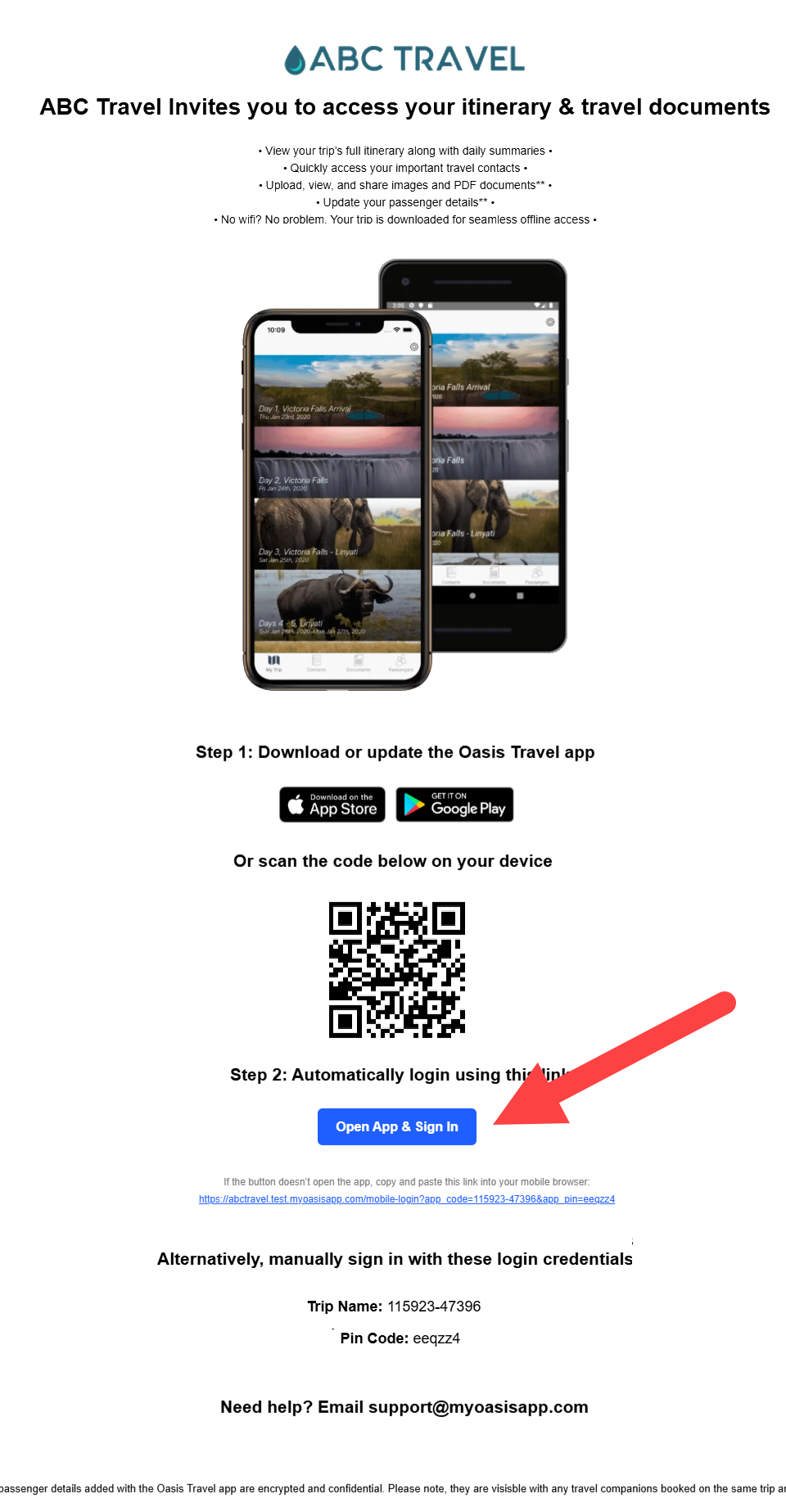
When selected on a mobile device, this button will automatically open the Oasis Mobile App and sign the traveler directly into their trip.
Step 1: Open the invitation email on the same mobile device where the Oasis Travel Mobile App will be used.
Step 2: Tap “Open App and Sign In”
NOTE:
If the app is already installed and up to date, the trip will open automatically.
If the app is installed but outdated, update the app, then return to the email and tap the button again.
If the app is not installed, the button will redirect to the App Store or Google Play for download.
Step 3: Install or Update the App if Needed
If redirected to the app store, download and install the Oasis Travel Mobile App. Then, return to the email invite and tap Open App and Sign In again to complete login.
Using a Computer or Non-Mobile Device
If the link is opened on a desktop or laptop, a webpage will display the Trip Name and PIN code along with instructions to download the Oasis Travel Mobile App. The automatic login feature will not function on desktop browsers.
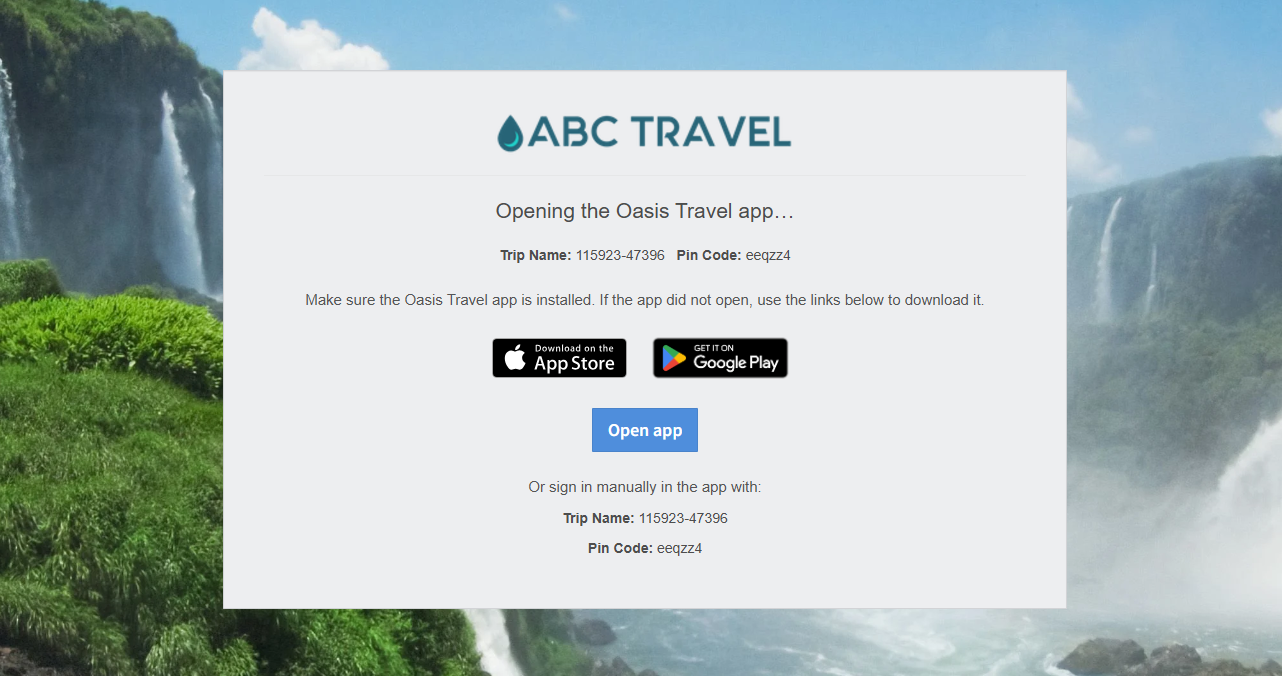
To access the trip on a computer, contact the travel advisor for a web itinerary link.
Manual Login Option
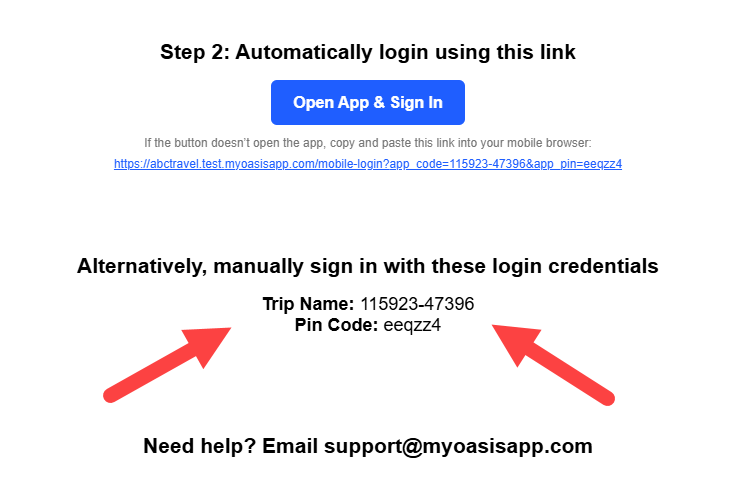
Travelers can still manually sign in using the Trip Name and PIN code provided in the email if needed.
Offline Access
Once logged in, trip details are downloaded to the device and can be accessed without Wi-Fi.
Need to learn how to Invite Clients to user the Oasis Travel Mobile App, click here
Related Articles
  How to Invite Clients to the Mobile App
  How To Add a PDF Document (Android)
  How to Add a PDF Document (iOS)
  How to Invite Clients to the Mobile App
  How to Add or Update Passenger Information