How to Use the Lock Financials Feature

Modified on Wed, 4 Feb at 9:52 AM

The Lock Financials is a toggle that prevents financial data from being edited through the user interface once enabled. This helps protect finalized financials while allowing automated processes to continue running as expected.


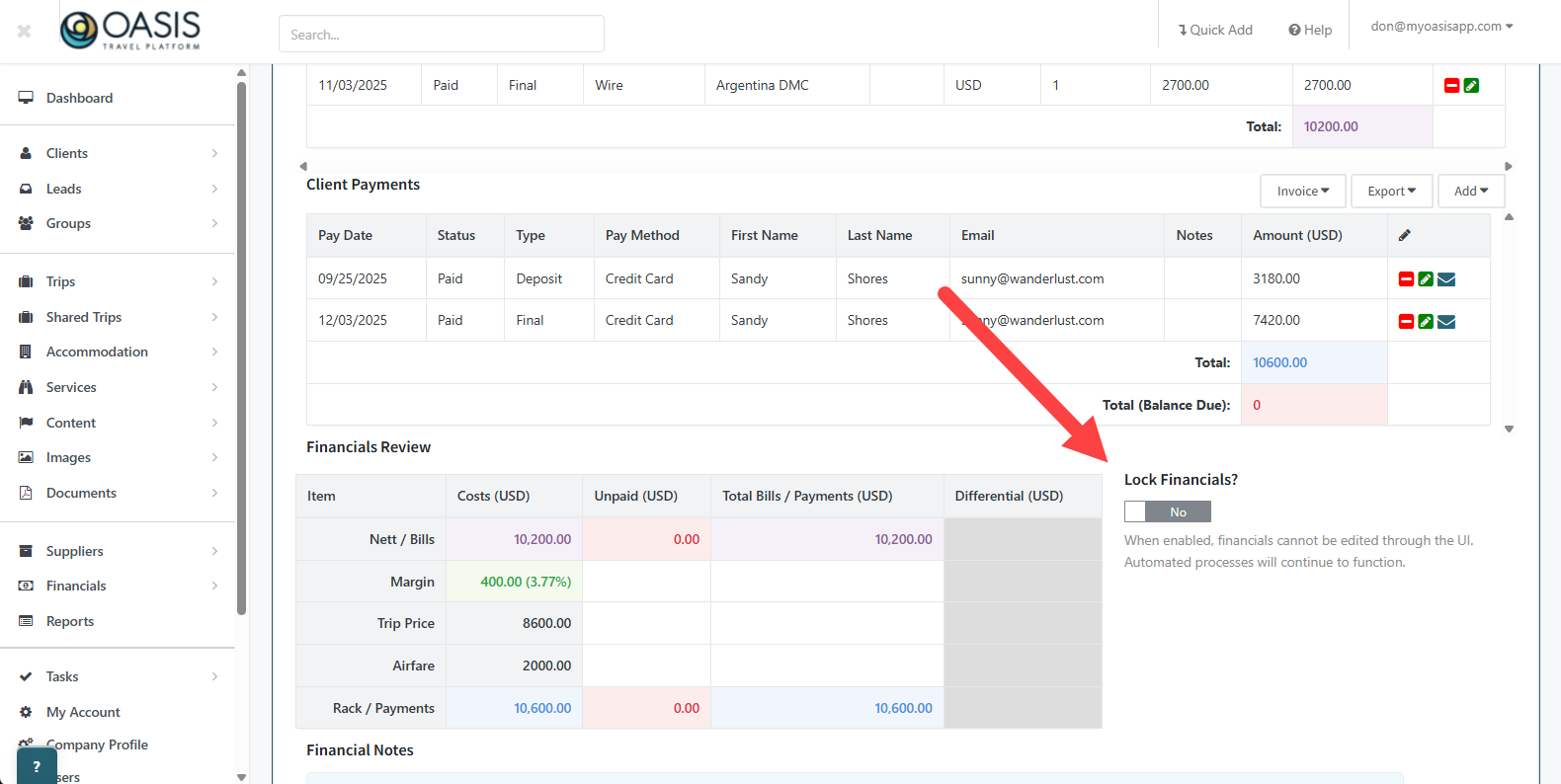
Where to Find Lock Financials


The Lock Financials toggle is located on the Lead record. Open the Lead Booking, then navigate to the Financials tab, then scroll to the bottom. The toggle appears to the right of the Financials Review box.


Who Can Use This Feature


Only users with Admin permissions can Enable or Disable the Lock Financials.


What Happens When Financials Are Locked


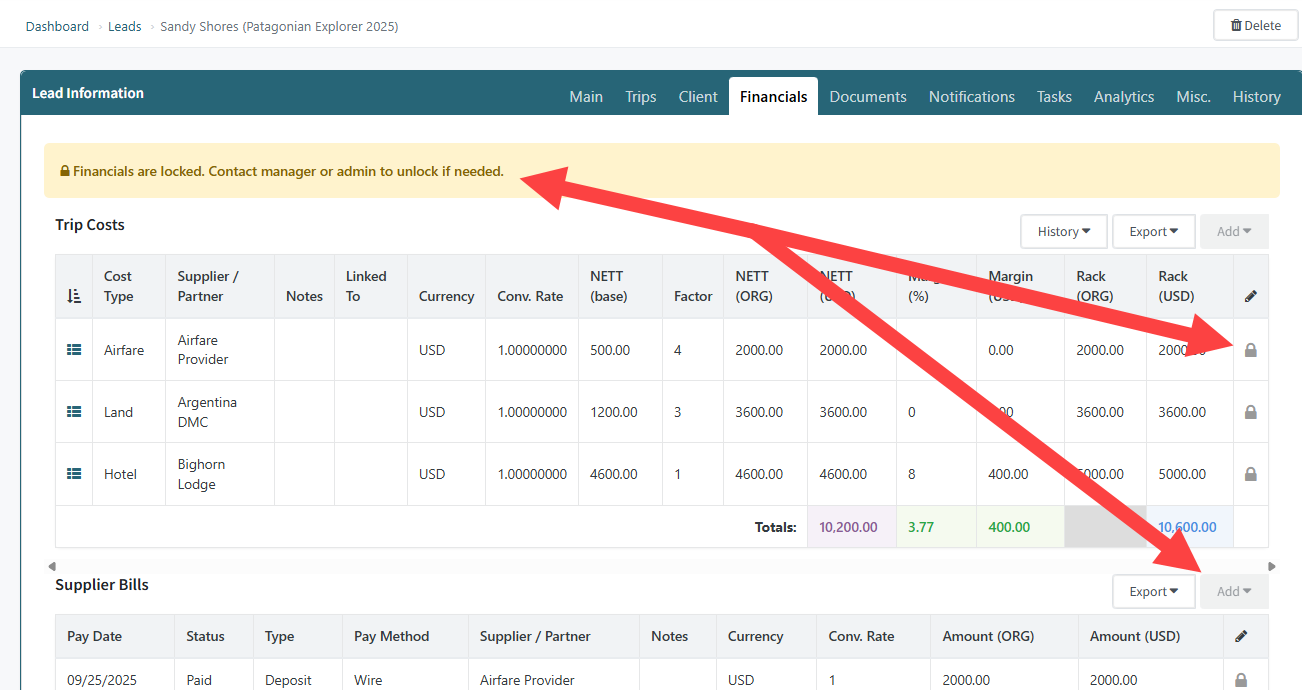
Once Lock Financials is enabled, all financial sections become read only across the user interface for that Confirmed Trip. The Add buttons and edit options for Client Payments, Supplier Bills, and Trip Costs are disabled, and any existing entries can no longer be edited or deleted. 


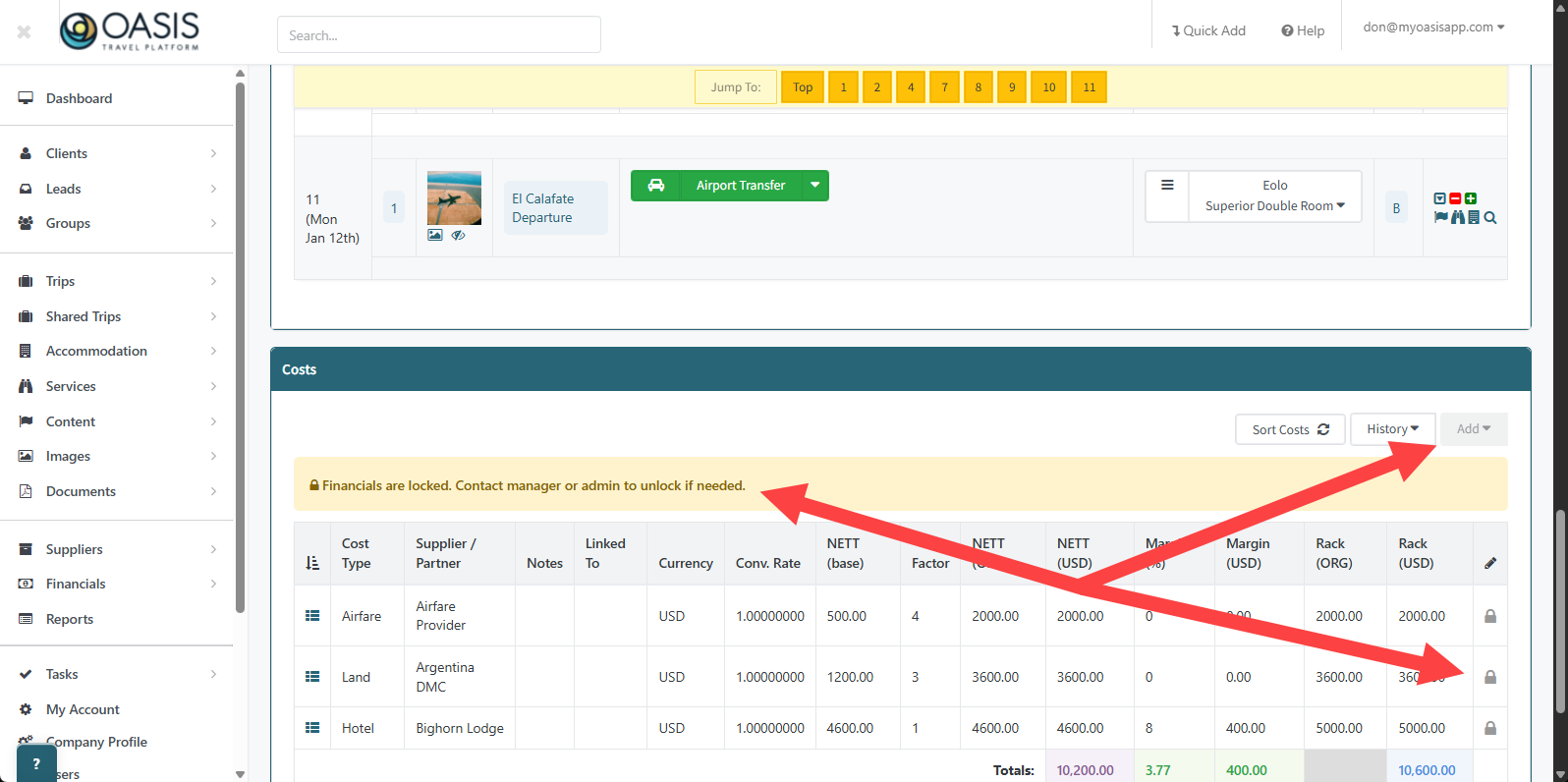
This applies anywhere financials are displayed, including the Lead Financials tab and the Trip Costs section on a Confirmed Trip. Since Trip financials are tied back to the Lead through a many to one relationship, locking financials on the Lead also locks them on the Confirmed Trip. Each cost type displays a lock icon, and a message appears above the financials indicating they are locked and must be unlocked by a manager or admin to make changes.


Any costs already added across Client Payments, Supplier Bills, or Trip Costs are fully locked and cannot be changed.


What Still Works When Locked


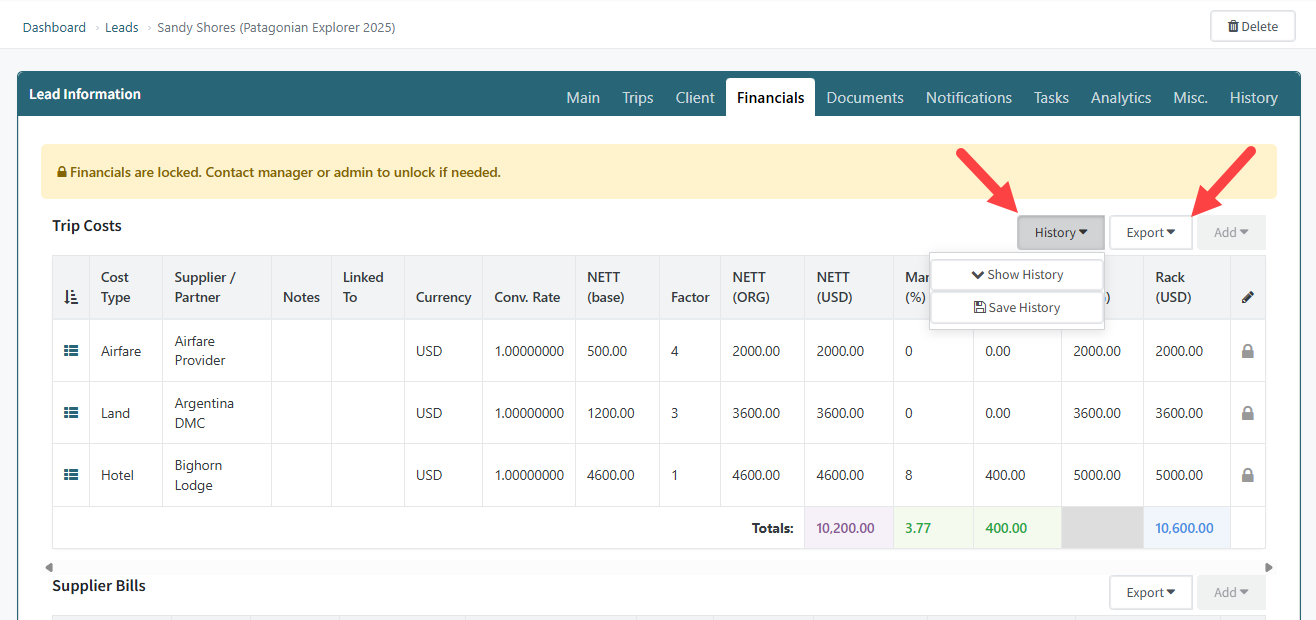
Exporting financials remains available for all financial types and Saving history continues to function for Trip Costs.


Automated processes continue to run normally, including client payments made through integrated payment services like Stripe or Flywire, when configured by the Company. If a Traveler completes a payment on an invoice using one of these integrations, the system will automatically update the Client Payment status from Unpaid to Paid, even while financials are locked. 


Unlocking Financials


Only when an Admin disables the Lock Financials toggle all standard add, edit, and delete options are restored.


And that's how to Lock Financials for a Confirmed Trip on a Lead with the Oasis Travel Platform! We hope you found this guide helpful. If you need additional help or want to share your thoughts, reach out at support@myoasisapp.com. We love hearing from you and are always here to help.