The Client Document Uploader gives you two flexible ways to collect traveler documents, depending on how and when you want clients to submit them. You can send the Document Uploader as a standalone link, which is ideal when you simply need travelers to upload items like passports, visas, insurance documents, or signed forms ahead of their trip.
You can also attach the Document Uploader directly to a Traveler Form, either the Default Traveler Form or a Custom Form, allowing clients to enter traveler details and upload required documents in one seamless step. This makes it easy to gather all essential information and files together, reducing follow ups and keeping everything organized in one place.
Document Uploader
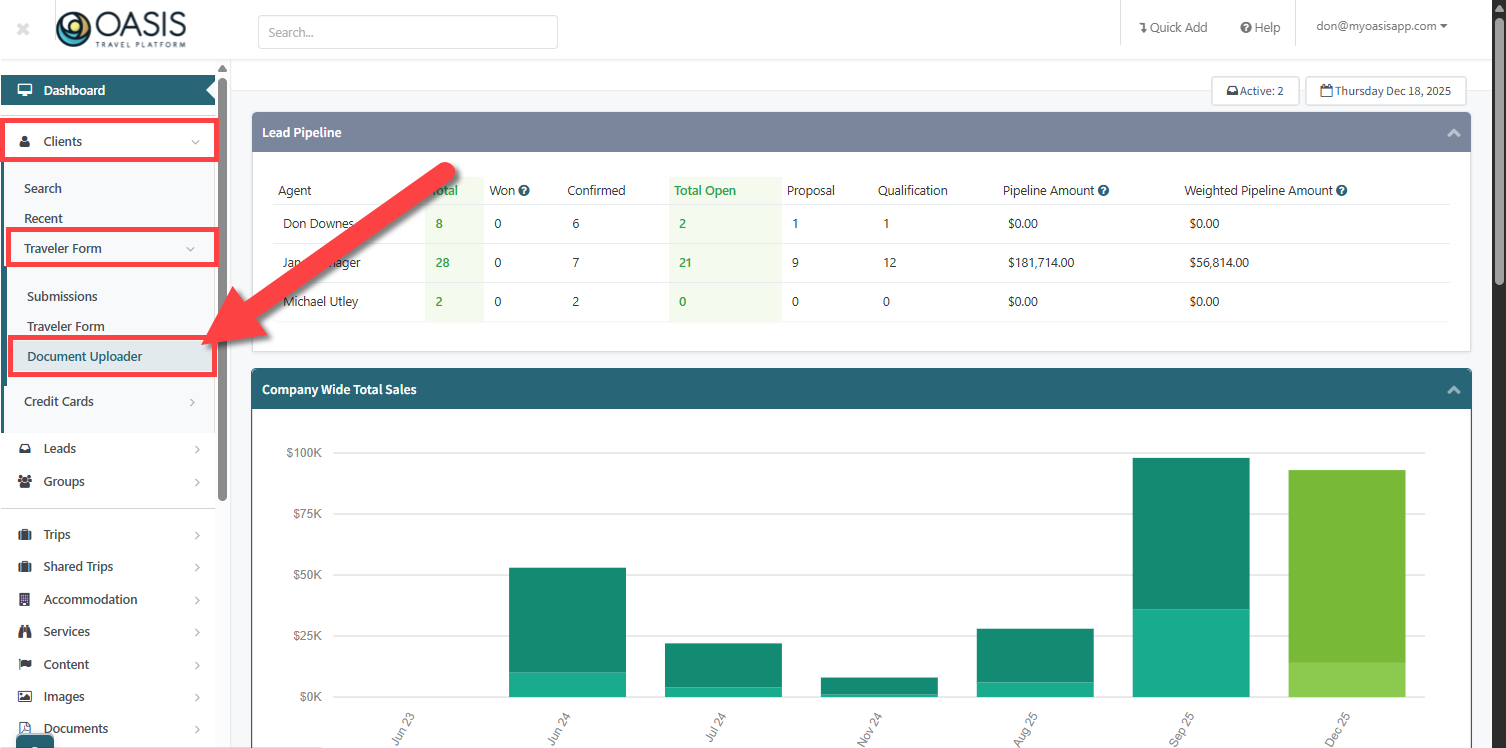
Located in the left side menu under Clients then under Traveler Form.
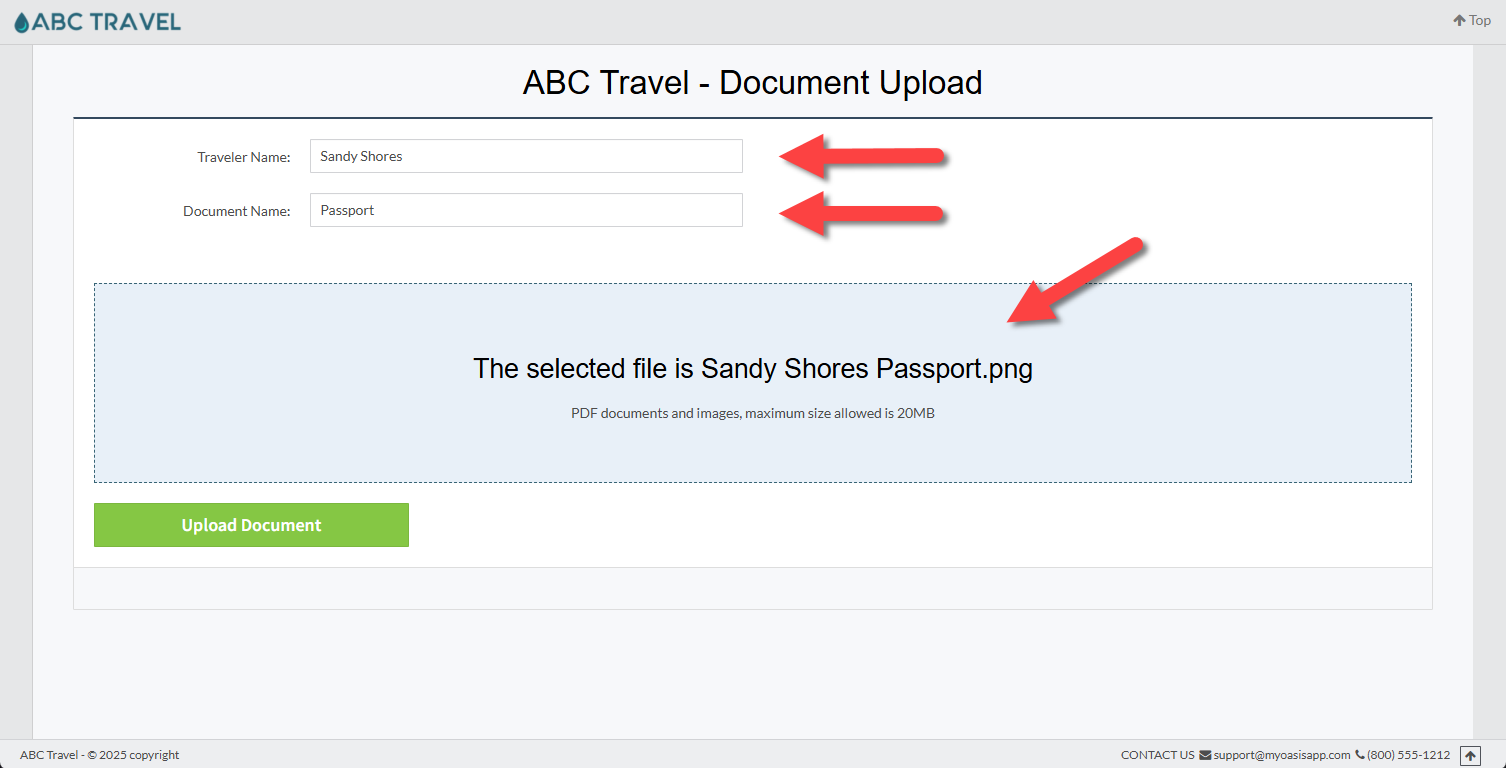
On the Document Uploader page, the traveler enters their name, enters a document name, and uploads the file. PDF documents and images are supported, with a maximum file size of 20 MB. The URL at the top is shared with any of your Travelers for them to use.
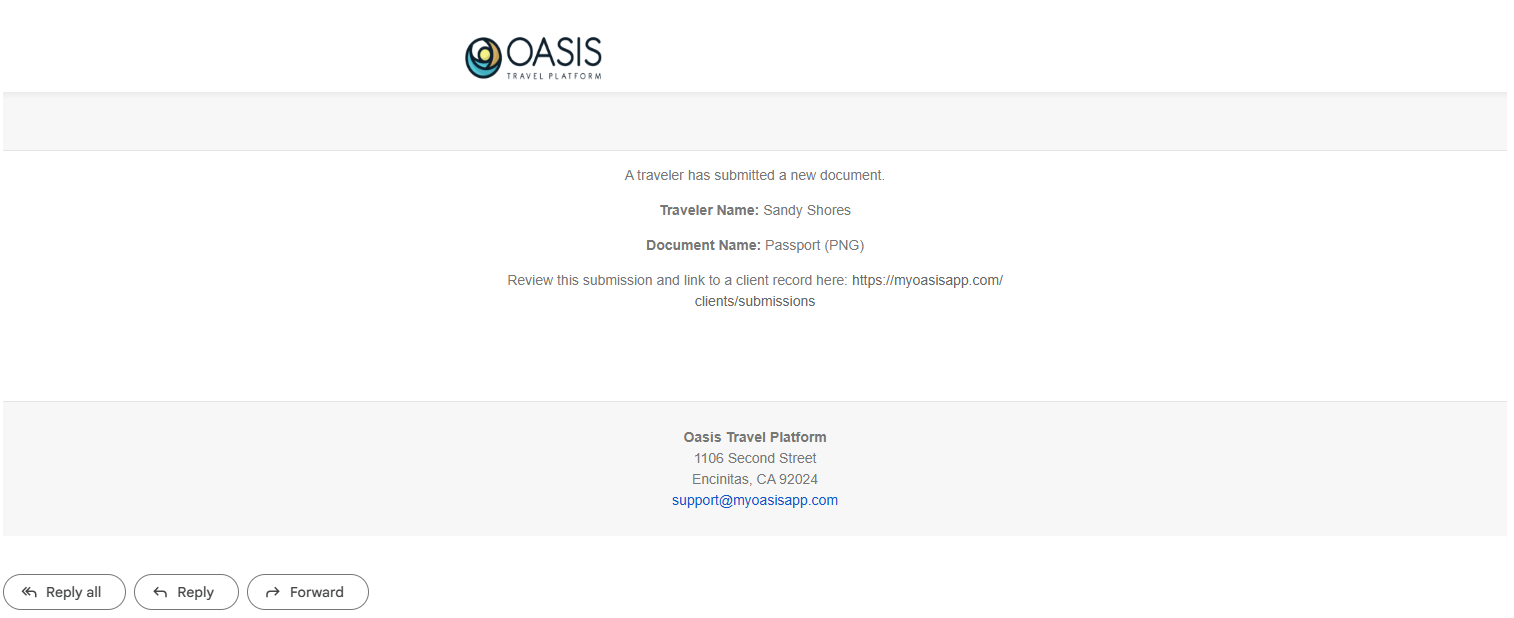
After each successful upload an email notification is sent.
Uploaded documents can be reviewed under Clients >> Traveler Form >> Submissions. Traveler form entries remain at the top of the page. Documents uploaded through the Document Uploader that have not yet been associated with a Client or Lead appear below under Unlinked Documents.
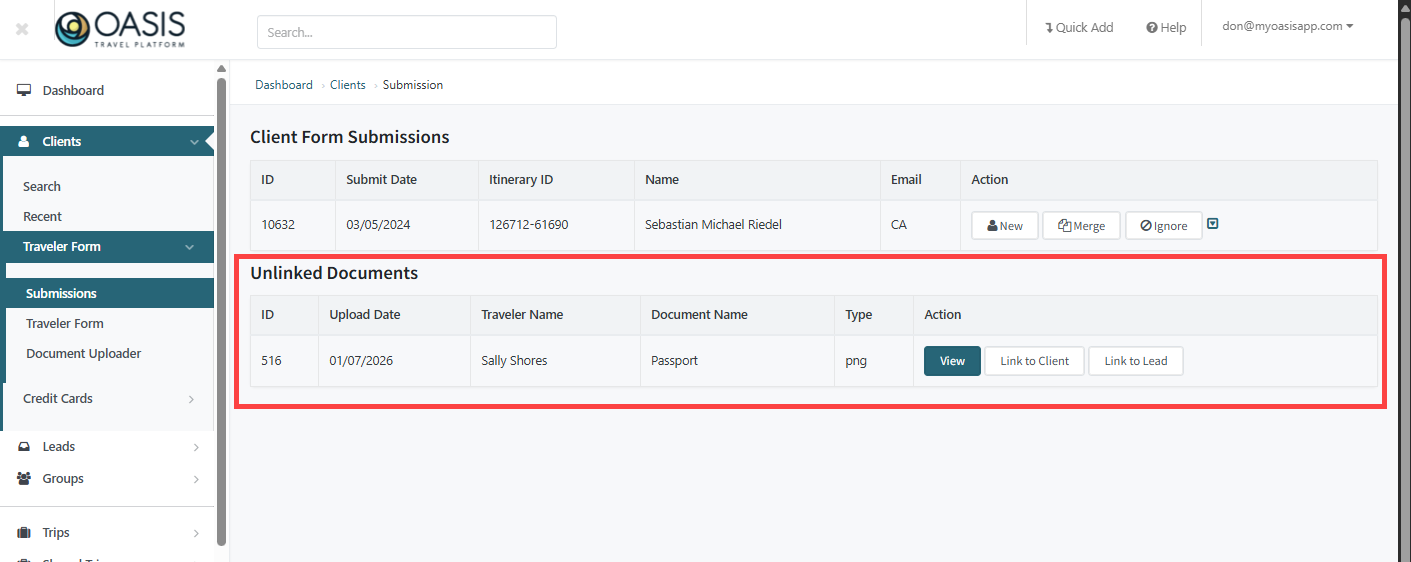
Unlinked Documents display the upload date, traveler name, document name, and document type. Each document can be viewed or linked to a Client or Lead. The Document then can be found under the Documents Tab under either the Client or Lead.
Document Uploader on Form
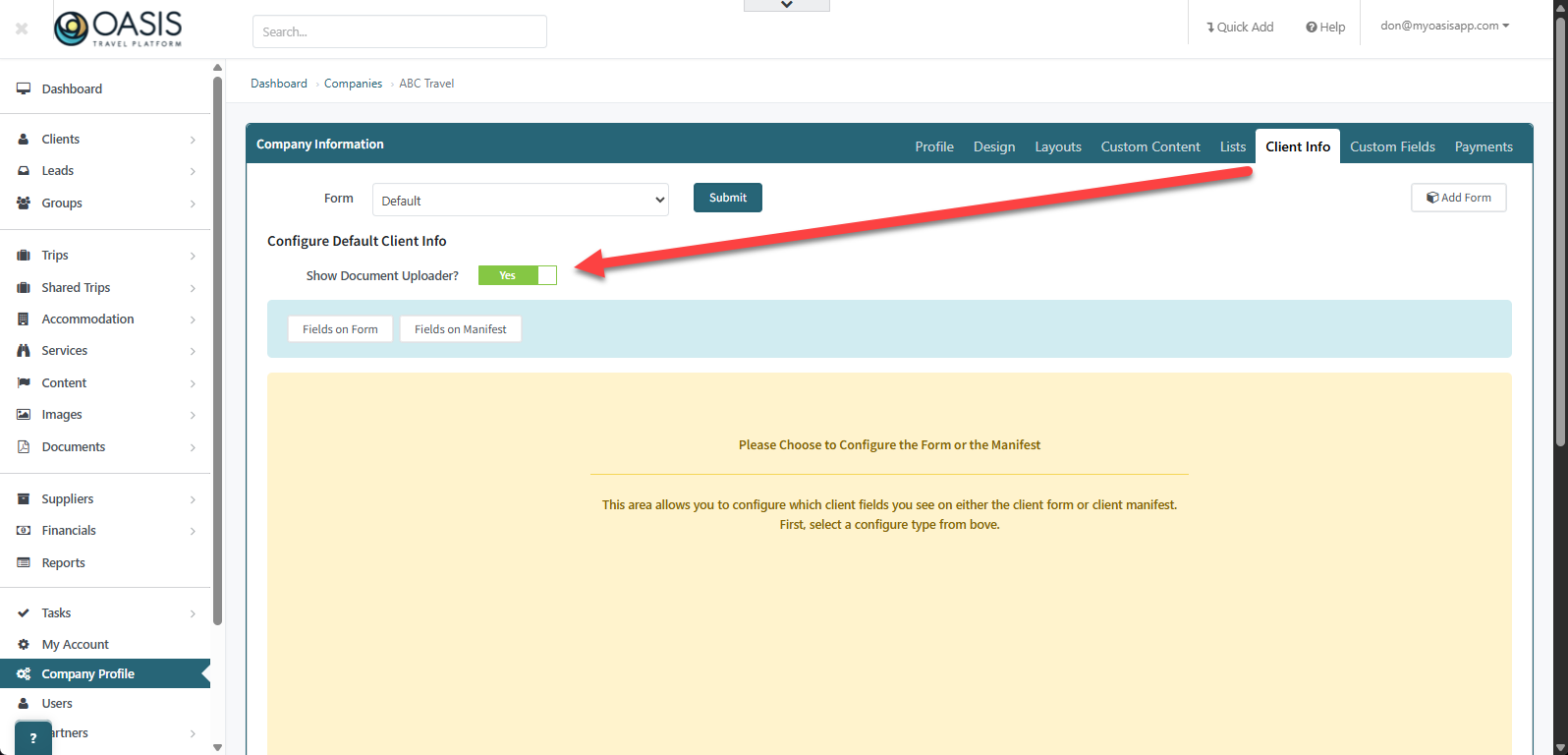
The Document Uploader can also be added to any traveler form, Default and Custom Forms, allowing clients to upload documents as part of the form experience. To edit simply locate the Form under Company Profile >> Client Info:
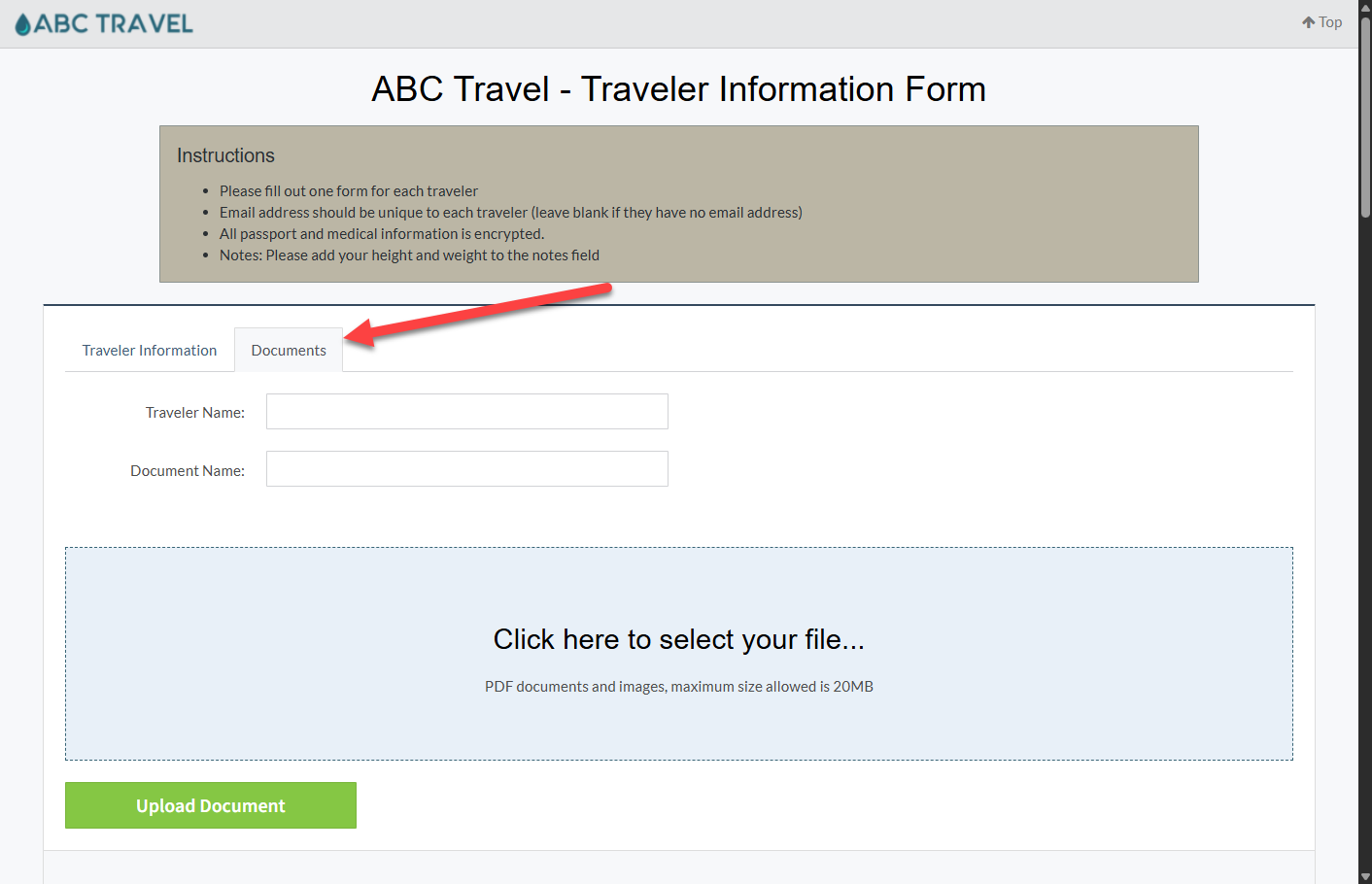
The Document Uploader will appear as a new Tab on your Form where you can simply share the URL and travelers will have access to both the Form and Document Uploader.
 | Related Articles:How to Create a Custom Traveler FormActions for Submitted Traveler Forms |