Using the Layouts Tab for PageSnap and PageFlow Design
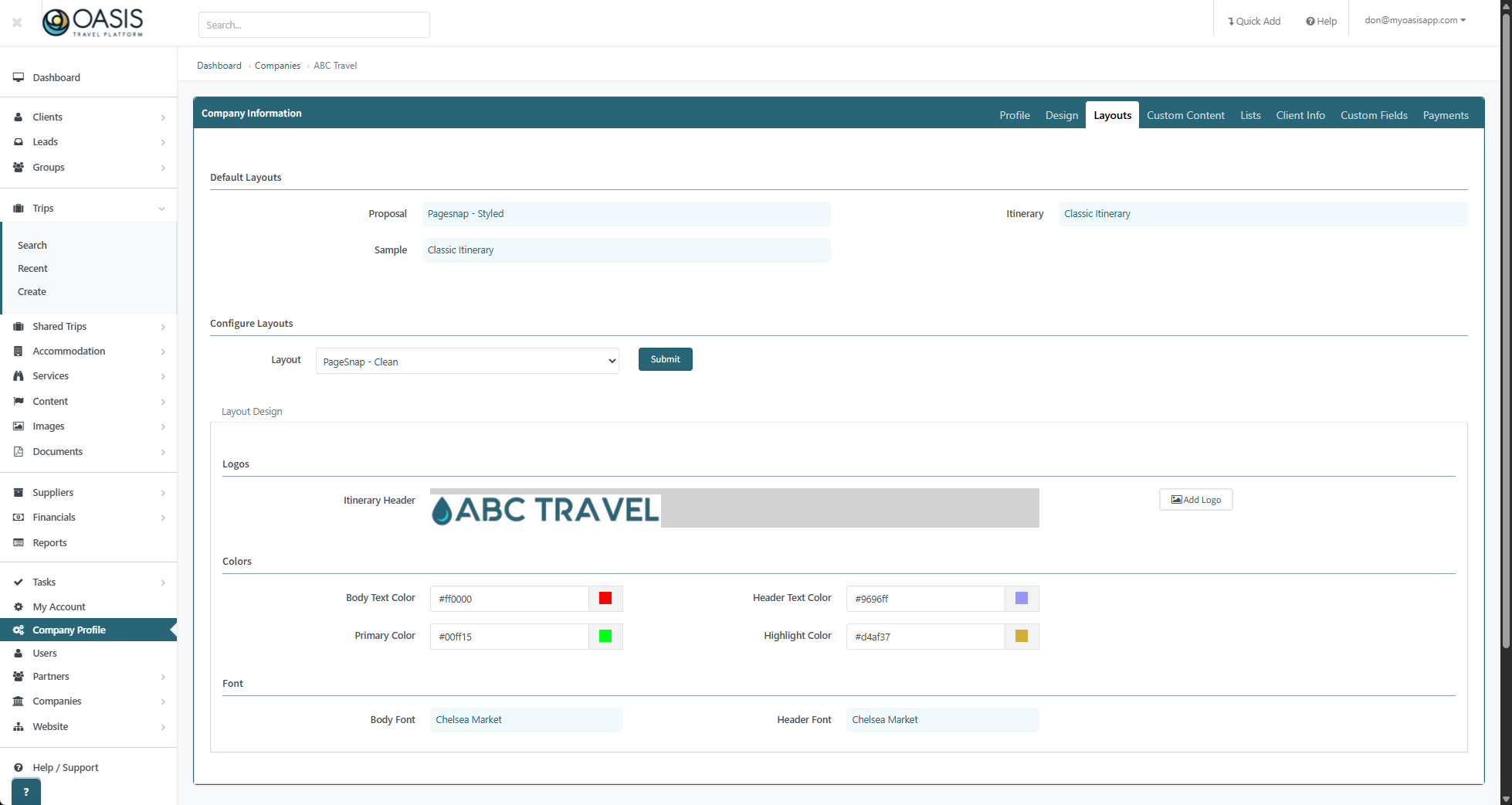
The Layouts tab is a new option in your Company Profile settings. It appears next to Profile and Design. The Design tab continues to control the Classic itinerary layout. The Layouts tab is specifically for managing PageSnap and PageFlow designs and for setting the default layouts used for Proposals, Itineraries, and Sample views.
At the top of the Layouts tab you will see the Default Layouts section. Here you choose which layout will be used by default for each view. Select the layout you want for Proposal, Itinerary, and Sample. These defaults are applied whenever a new trip is created. You can mix and match, for example PageSnap Styled for Proposals and Classic Itinerary for the main Itinerary view.

Below Default Layouts is the Configure Layouts section. Use the Layout dropdown to choose the specific PageSnap or PageFlow layout you want to edit, then select Submit. This loads the design settings for that layout in the Layout Design area. Any logo, color, or font changes you make here will apply to every itinerary that uses this layout.
In the Layout Design section, the Logos row controls the itinerary header logo. Click Add Logo to upload or replace the image that appears at the top of your itineraries. This is where you keep your branding consistent across all PageSnap and PageFlow views.

The Colors row controls the main colors used in your itineraries. You can set the Body Text Color, Header Text Color, Primary Color, and Highlight Color. Each field accepts a Hex code, or you can click the color square to open the color chart and pick a color visually. Use primary and highlight colors to draw attention to buttons, labels, and key details while keeping text readable.

The Font row controls typography. Use the Body Font field to choose the font used for the main content of your itineraries, and the Header Font field for titles and headings. Selecting fonts here keeps PageSnap and PageFlow views consistent so you do not have to manually adjust fonts inside each itinerary.
