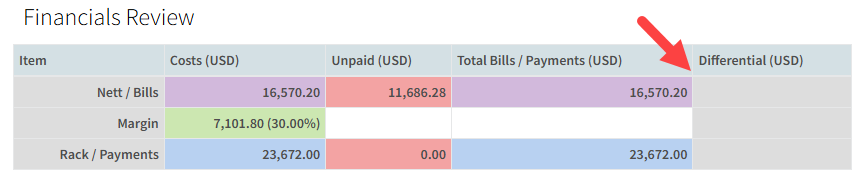
When you create a Supplier Bill in Oasis, the exchange rate used is based on the information available at that time. By the time you actually pay your supplier, however, the exchange rate may have changed, meaning the amount that leaves your bank account is slightly different than what was originally expected.
You can now reconcile the currency conversion directly from the Supplier Bill to record the final exchange rate or final amount paid. Oasis updates the bill, adds the related Currency Conversion Trip Cost, and keeps the Trip Costs and Supplier Bills balanced so the financials tie out.
Reconciling a Supplier Bill
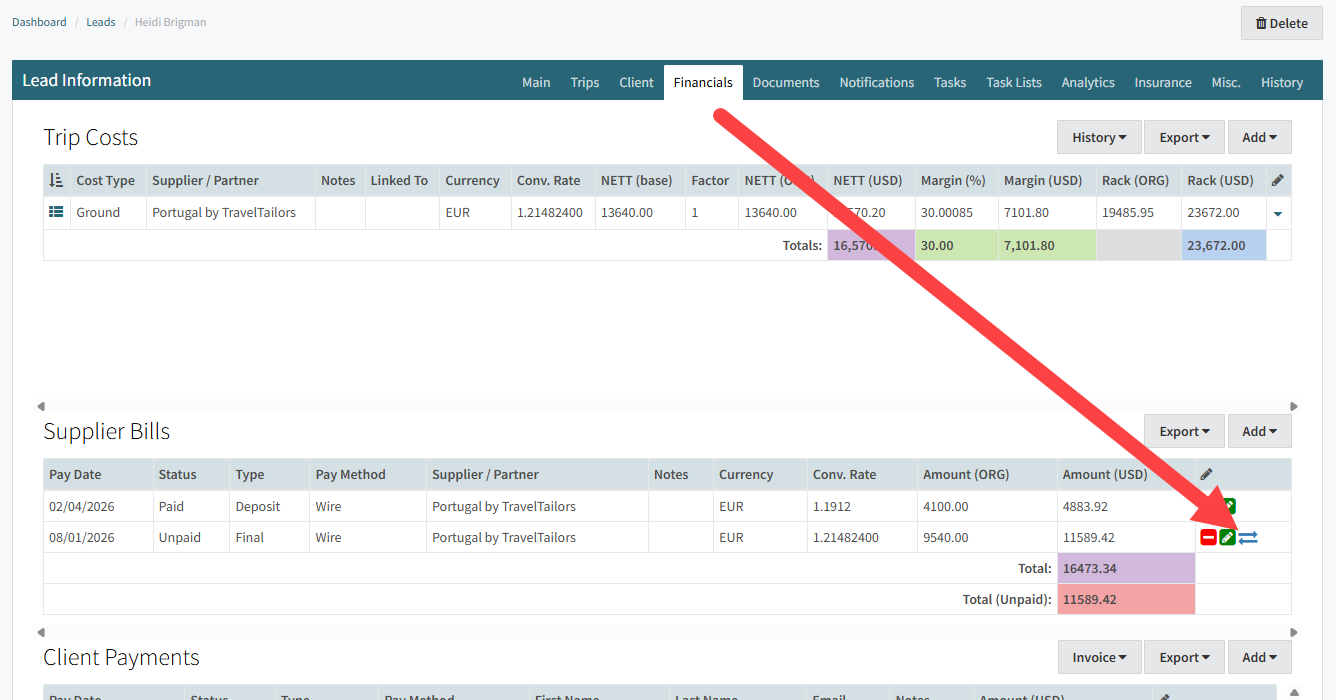
Open the Lead and navigate to the Financials tab.
Locate the unpaid Supplier Bill you want to reconcile.
Click the Currency Reconciliation icon (
 ) next to the Supplier Bill.
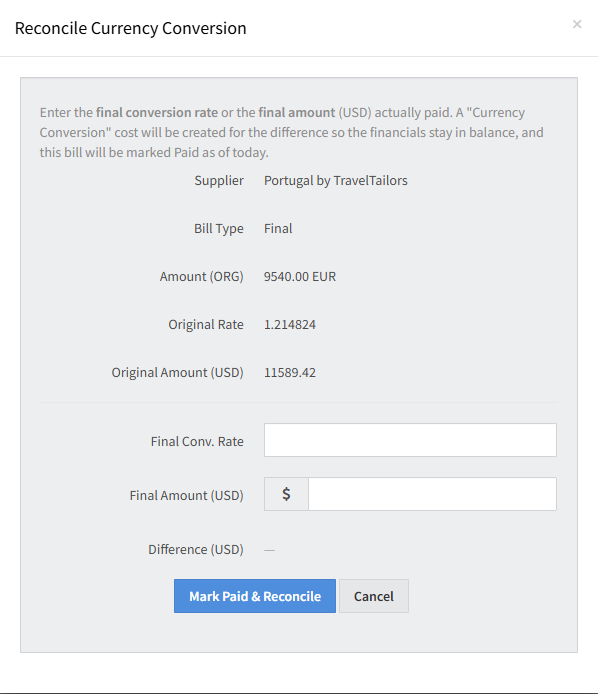
The Reconcile Currency Conversion window will open and display the Supplier, Bill Type, Supplier Currency Amount, Original Conversion Rate, and Original Base Currency Amount.
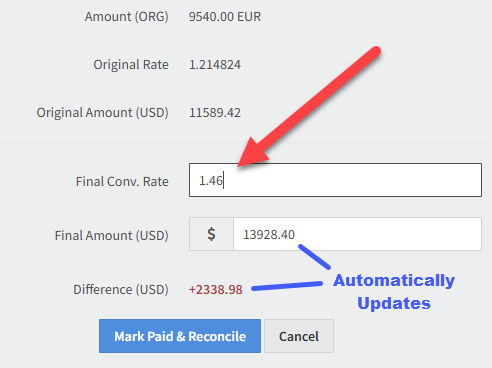
Enter the Final Conversion
You can reconcile the Supplier Bill using either the final conversion rate or the final amount paid.
Option 1, Enter the Final Conversion Rate
Enter the final exchange rate used when the payment was processed.
Oasis will automatically calculate the Final Amount and Difference.
Option 2, Enter the Final Amount
If you know the final amount charged in your company’s base currency, enter it directly.
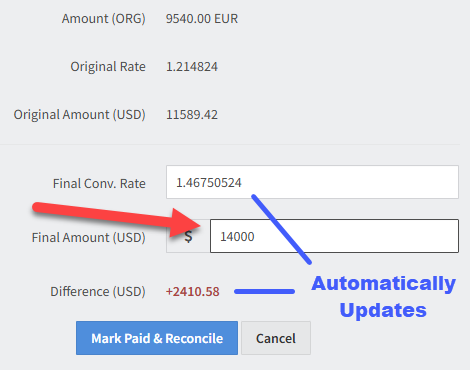
Oasis will automatically calculate the Final Conversion Rate and Currency Difference.
As you update either field, the remaining values are calculated automatically.
Complete the Reconciliation
After reviewing the calculated difference, click Mark Paid & Reconcile.
Oasis will automatically:
Mark the Supplier Bill as Paid.
Update the Supplier Bill with the final conversion rate and amount.

Create a Currency Conversion Trip Cost for the exchange rate difference. The adjustment is applied entirely to the NETT amount with a Zero RACK, so the Trip Price and Client Payments amounts remain unchanged.
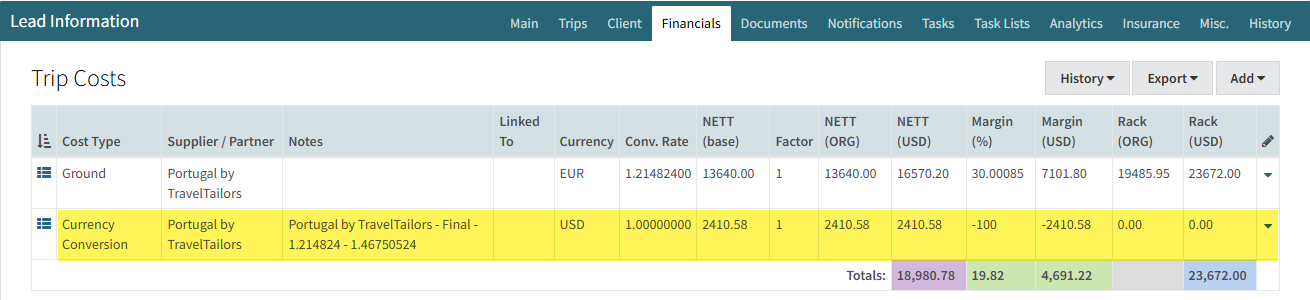
Keep the Trip Costs and Supplier Bills balanced.