When building itineraries, it is common for a trip to go through several revisions. Clients may request different hotels, new cities might be added, or activities may change as the planning process evolves. Because Oasis uses a modular structure, the system does not store historical snapshots of what an itinerary looked like at a specific moment in time.
Instead, the recommended approach is to create Trip Versions. This method keeps each major revision organized while allowing you to easily find previous versions later if you need to review or reuse them.
This article explains how Trip Versions work, why copying trips is the best method for managing revisions, how to create a new version, and how the Version field and Search Filters help you locate earlier versions quickly.
Why Trip Versions Are Used
Oasis itineraries are built by combining individual services, accommodations, and activities into a modular structure. This makes editing extremely flexible because you can update individual pieces without rebuilding the entire itinerary.
However, this flexibility also means the system does not automatically record a timeline of every change. If a hotel is replaced or a tour is removed, the system updates the current trip rather than storing a historical record of the previous version.
For that reason, when a significant revision is needed, the best practice is to copy the trip and create a new version.
This creates a clean separation between iterations of the itinerary while preserving earlier versions for reference.
How to Create a New Trip Version
Creating a new version of a trip is done by copying the existing trip and then modifying the new copy. The Version field is used to help identify and track which version of the itinerary you are working on. This can follow any method your team prefers, such as Version 1, Version 2, Version 3, or a revision date, a proposal reference number, or even labels such as Extended, Luxury, or Revised.
On the Trip page, click the Copy button located near the top right of the screen.
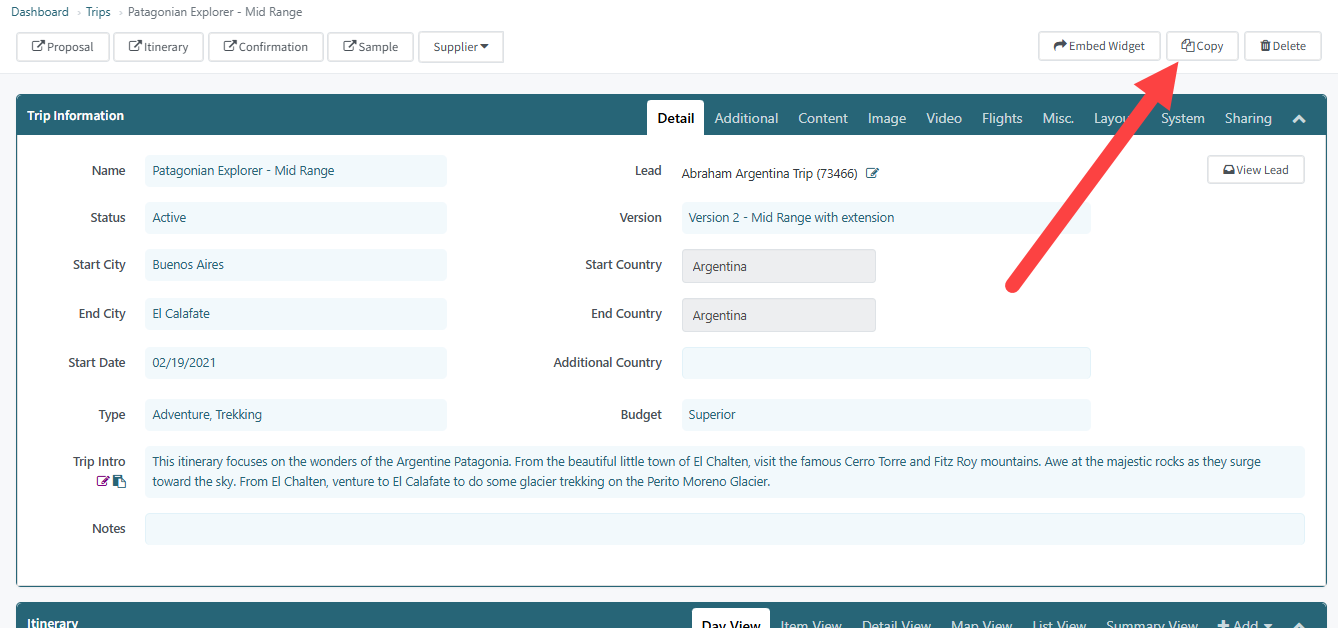
After clicking Copy, a popup window will appear asking which Lead the new trip should be associated with. By default, it will already be set to the same Lead as the original trip. In most cases this should remain unchanged since the new version belongs to the same client inquiry.
You will also see three Yes or No toggle options that control what information is carried into the new version.
• Include Content? Copies the itinerary structure, services, descriptions, and other itinerary content related to the itinerary.
• Include Costs? Copies pricing and any costs associated in the Trip Costs.
• Include Flights? Copies any flight attached to the trip.
All other trip details are mapped over automatically.
Once the copy is created, the new trip will appear with “Copy of…” at the beginning of the trip name.
At this point you may update the trip name if you want the version to be clearly visible in trip lists. Some teams include the version directly in the trip name, while others keep the name consistent and rely on the Version field to track revisions.
After the new version is created, you can edit the itinerary, update services, adjust pricing, or make any other changes needed for that revision.
How Versions Work with Lead Bookings
Each itinerary is stored under a Lead Booking, which acts as the container for all Versions of that Trip while you work with a client.
A Lead Booking can contain multiple Trips, allowing you to keep different itinerary versions organized together.
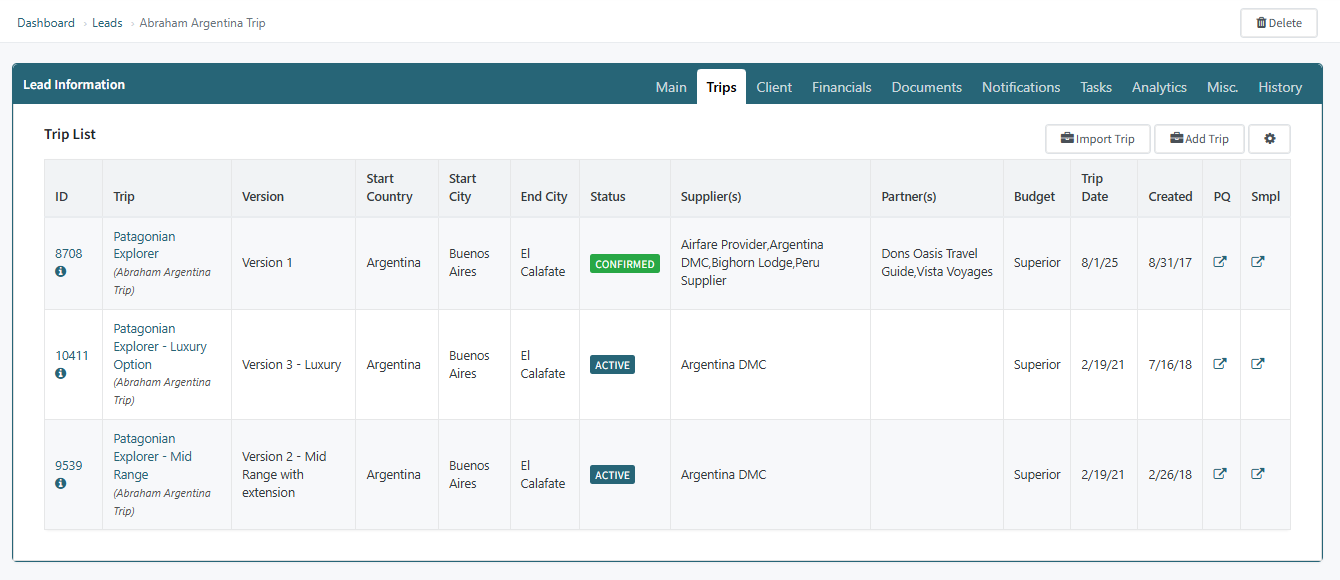
For example, a Lead Booking may contain:
Italy Adventure – Version 1
Italy Adventure – Version 2
Italy Adventure – Version 3
All of these versions remain associated with the same Lead Booking while you refine the itinerary.
The Key Rule to remember is that a Lead Booking can contain many trips, but only one trip can be marked as Confirmed.
The Confirmed trip is the version the system uses for:
Client itinerary
Trip Costs
Supplier Costs
Client Payments
Invoices
Reporting
Earlier versions remain attached to the Lead Booking for reference but are not used by the system unless their status changes.
Finding Previous Versions
The easiest way to review different versions of a trip is directly from the Lead Booking.
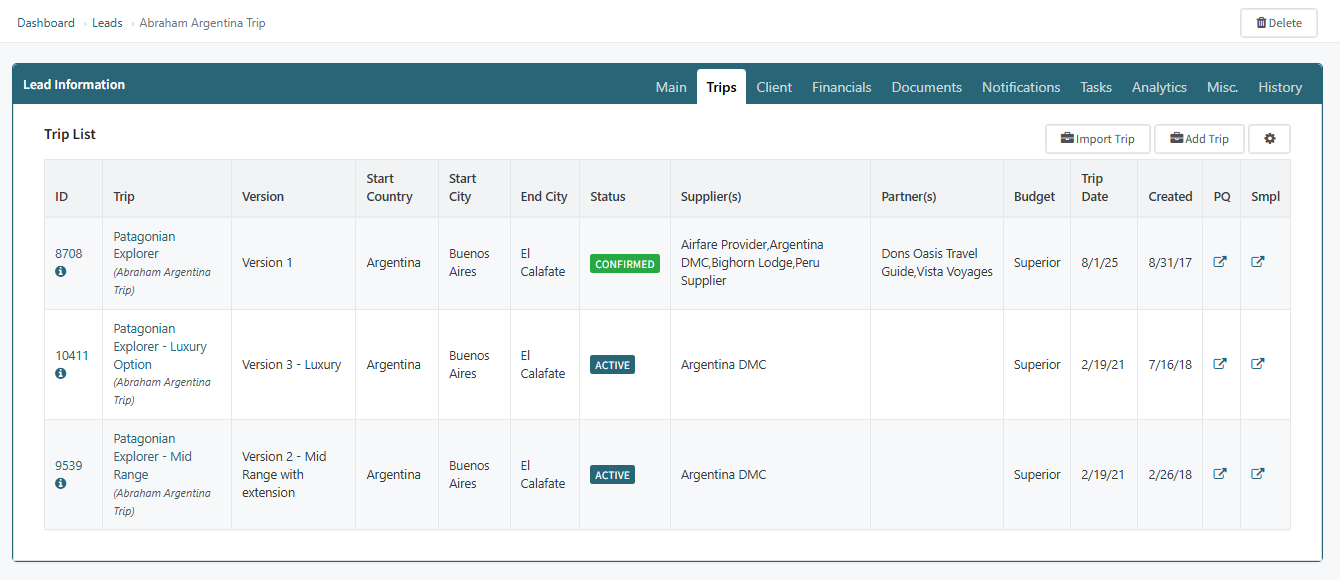
Open the Lead and select the Trips tab on the Lead. This view lists every trip associated with that Lead, allowing you to quickly see all versions that have been created during the planning process. The Version column clearly identifies how each iteration was labeled, making it easy to compare versions side by side.
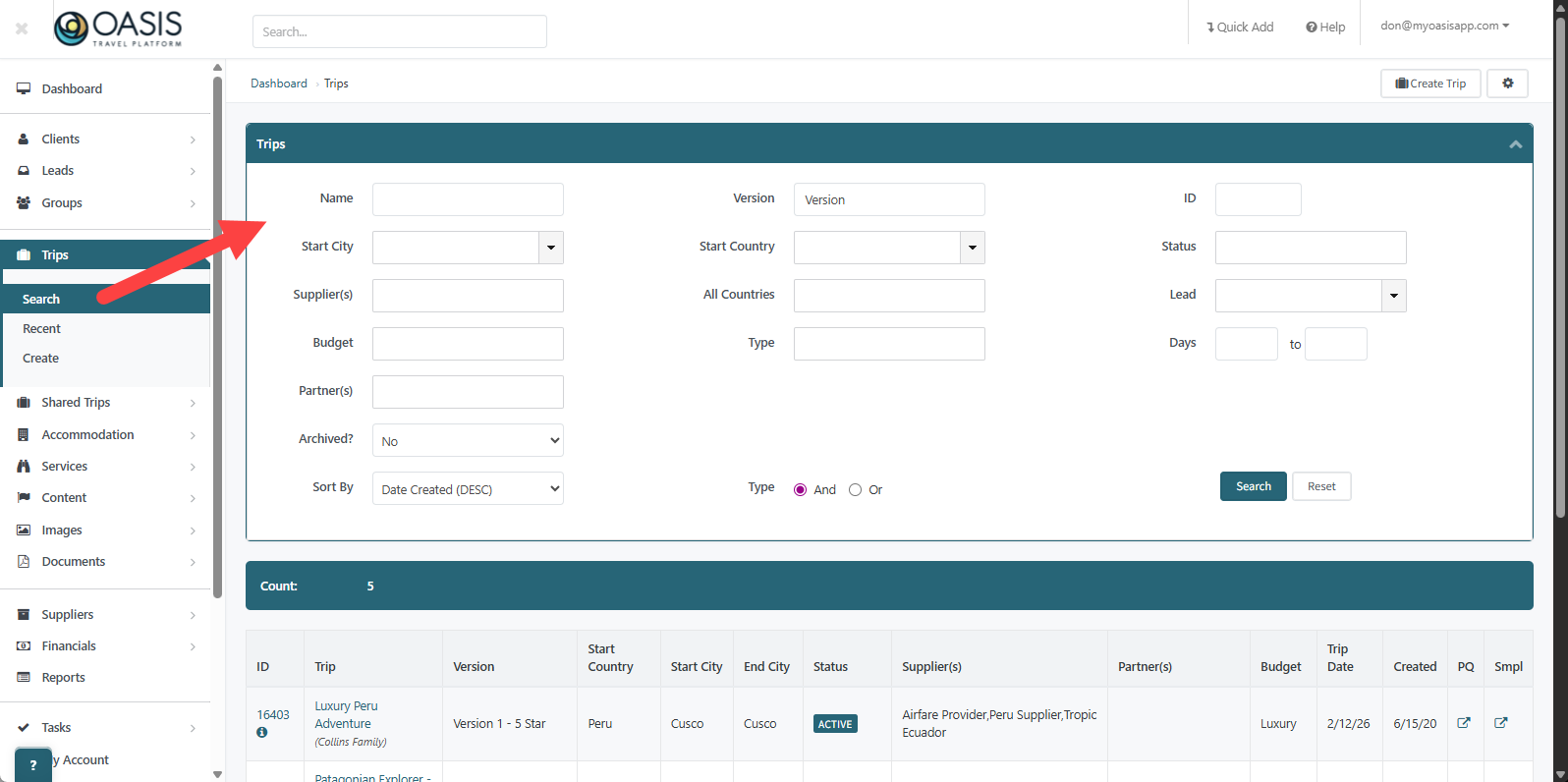
You can also locate versions using the Trip Search Filters. Searching by Trip Name will return all trips that match that itinerary name, allowing you to see the different versions that have been created over time. Combining the name with the Version field can further narrow the results when working with a large number of trips.